Editor Guide
Access and Responsibilities
This guide is for Editors, Moderators and Administrators who maintain published learning content.
- Sign in with an authorised account and open the Dashboard.
- Edit only content that you have verified against a reliable source.
- Preview changes before publishing them for students.
- Do not use user-management or destructive operations unless your role explicitly permits them.
Editor Dashboard Page Links
हर management page को सीधे खोलने के लिए ये links इस्तेमाल करें:
- Main Editor Dashboard — banners, video lectures, contributors और link preview manage करें।
- Academic Operations — semesters, subjects, assignments और GitHub Content Sync manage करें।
- Study Materials — saved study-material records देखें और edit करें।
- Question Papers — paper metadata, language files और preview details manage करें।
- Editor Guide — सभी Editor workflows की documentation पढ़ें।
Academic Operations
Open in Dashboard →- Confirm the programme, semester, subject code and subject title.
- Keep subject codes uppercase and consistent with existing records.
- Check the student-facing Resources page after changing academic metadata.
GitHub Content Sync
Open GitHub Sync →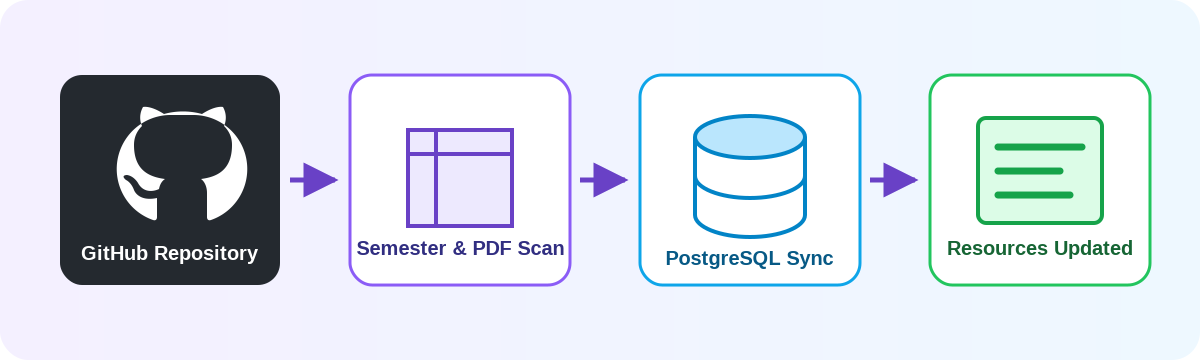
- Sync कब करें: GitHub repository में PDF add, rename, move या delete करने के बाद manual sync चलाएँ। Railway deployment पर भी sync एक बार automatically चलता है।
- Source: System
PDF_RESOURCE_BASE_URLसे repository, branch औरMCA_newroot पहचानता है। - Discovery:
Semester_*, subject folder,exam_papersऔरstudy_materialfolders automatically scan होते हैं। - Result: Message में semesters, subjects, scanned PDFs, synced papers, synced study materials और removed records की संख्या दिखाई देती है।
- Deletion: GitHub से managed PDF हटने पर अगली sync उसका database record हटाती है। पूरा subject folder हटने पर managed subject भी हटता है।
- Safety: अगर scan में कोई semester PDF नहीं मिले, cleanup cancel हो जाता है ताकि temporary GitHub problem database खाली न करे।
- Failure: Error पढ़ें, repository access check करें और फिर retry करें। बार-बार button click न करें।
Study Materials
Open in Dashboard →- Select the correct subject before adding a material record.
- Provide a clear title, type, language availability and valid file information.
- Use edit mode for corrections instead of creating a duplicate record.
- After saving, verify that the material opens from the subject card.
Question Papers
Open in Dashboard →- Record the subject, exam session, year and available English/Hindi files accurately.
- Use consistent titles so gallery search and sorting remain useful.
- Open the saved item in the PDF reader and test each available language.
Paper Preview Cache
Open in Dashboard →- Refresh preview images after question-paper files change.
- Review the operation summary and retry only failed items.
- Do not repeatedly rebuild a healthy cache without a content change.
Video Lectures
Open in Dashboard →- Select the subject and enter a complete YouTube video or playlist URL.
- Add a useful title, unit, teacher, language, description and display order.
- Use the metadata helper where available, then review the fetched details.
- Keep the lecture inactive until its preview and subject association are correct.
Lecture JSON Catalog
Open in Dashboard →- Use stable unique IDs and valid database subject codes.
- Validate before saving; invalid JSON never starts a sync.
- Startup adds missing records, while manual sync also updates matching records.
- Removing JSON entries never deletes database records.
Link Preview
Open in Dashboard →- Provide a concise title, description and canonical URL.
- Choose an image URL or upload and confirm the preview.
- Use an approximately 1200 × 630 image for social sharing.
Contributors
Open in Dashboard →- Use the contributor's preferred name and an accurate description.
- Check avatar, profile link, contribution labels, order and active state.
Publishing Checklist
- Correct subject and semester selected.
- Title, language, session and year verified.
- Files and external links open successfully.
- No duplicate record already exists.
- Student-facing page checked on desktop and mobile layout.
Common Problems
- Save rejected: Review required fields and your current role.
- Upload rejected: Confirm the file type, size and connection, then retry once.
- Item not visible: Check its active/published state and subject association.
- Wrong content published: Unpublish or correct it promptly; do not create another duplicate.